
March 14, 2025
React-three-fiber(apple watch)
https://www.youtube.com/watch?v=lrsB-4SN4us&ab_channel=TechyWebDev
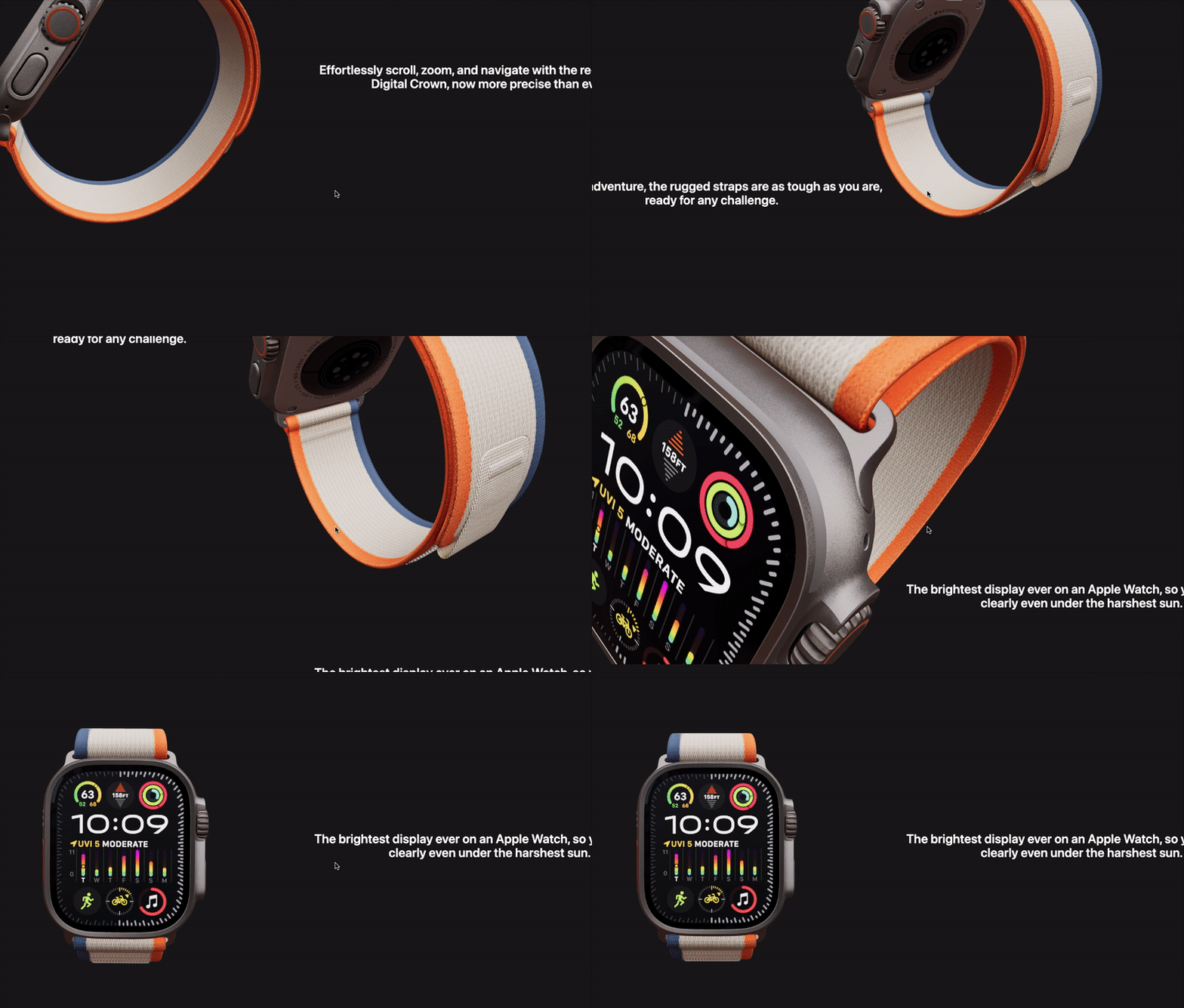
import { useRef, useEffect } from "react";
import { useFrame } from "@react-three/fiber";
import { Vector3 } from "three";

/**
 * Custom hook for handling camera transitions based on progress
 * @param {Object} options - Configuration options
 * @param {Array<Array<number>>} options.positions - Array of camera position waypoints [x,y,z]
 * @param {number} options.progress - Current progress value (0-1)
 * @param {Vector3} [options.lookAt] - Point for the camera to look at (default: origin)
 * @param {boolean} [options.smoothing] - Whether to apply smoothing to camera movement
 * @param {number} [options.smoothingFactor] - Smoothing factor (0-1), lower is smoother
 * @returns {Object} Camera reference
 */
export const useCameraTransition = ({
  positions,
  progress,
  lookAt = new Vector3(0, 0, 0),
  smoothing = false,
  smoothingFactor = 0.1,
}) => {
  const cameraRef = useRef();
  const targetPosition = useRef(new Vector3());

  useFrame(() => {
    if (!cameraRef.current) return;

    // Calculate the current position based on progress
    const index = Math.floor(progress * (positions.length - 1));
    const nextIndex = Math.min(index + 1, positions.length - 1);
    const t = (progress * (positions.length - 1)) % 1;

    // Calculate the interpolated position
    const [x, y, z] = positions[index].map(
      (v, i) => v * (1 - t) + positions[nextIndex][i] * t
    );

    // Update the target position
    targetPosition.current.set(x, y, z);

    if (smoothing) {
      // Apply smoothing by lerping current position toward target
      cameraRef.current.position.lerp(targetPosition.current, smoothingFactor);
    } else {
      // Set position directly without smoothing
      cameraRef.current.position.copy(targetPosition.current);
    }

    // Make camera look at the specified point
    cameraRef.current.lookAt(lookAt);
  });

  return cameraRef;
};
import {
  Environment,
  PerspectiveCamera,
} from "@react-three/drei";
import { AppleWatch } from "./AppleWatch";
import { useRef } from "react";
import { useCameraTransition } from "./useCameraTransition";

// 預設的幾個鏡頭位置
const positions = [
  [3.5, 2.17, 3.7], // 第 1 個位置
  [3.7, 0.6, 0.7], // 第 2 個位置
  [2.3, 0.87, -4.2], // 第 3 個位置
  [0, 2.5, 3.6], // 第 4 個位置
];

export const Scene = ({ progress }) => {

  const cameraRef = useCameraTransition({
    positions,
    progress,
    smoothing: true, // 可選:啟用平滑過渡
  });

  return (
    <>
      <PerspectiveCamera
        ref={cameraRef}
        fov={45}
        near={0.1}
        far={10000}
        makeDefault
      />
      <Environment preset="city" />
      <AppleWatch />
    </>
  );
};

---

# React Three Fiber 相機過渡完整示例

以下是五種不同的相機過渡方案的完整實現,包括如何封裝和使用它們。

## 1. 使用自定義 Hook 方法(基礎方法)

### `useCameraTransition.js

```js
import { useRef } from "react";
import { useFrame } from "@react-three/fiber";
import { Vector3 } from "three";

/**
 * 自定義 Hook 處理基於進度的相機過渡
 * @param {Object} options - 配置選項
 * @param {Array<Array<number>>} options.positions - 相機位置路徑點陣列 [x,y,z]
 * @param {number} options.progress - 當前進度值 (0-1)
 * @param {Vector3} [options.lookAt] - 相機看向的點 (默認: 原點)
 * @param {boolean} [options.smoothing] - 是否應用平滑移動
 * @param {number} [options.smoothingFactor] - 平滑因子 (0-1),越小越平滑
 * @returns {Object} 相機引用
 */
export const useCameraTransition = ({
  positions,
  progress,
  lookAt = new Vector3(0, 0, 0),
  smoothing = false,
  smoothingFactor = 0.1,
}) => {
  const cameraRef = useRef();
  const targetPosition = useRef(new Vector3());

  useFrame(() => {
    if (!cameraRef.current) return;

    // 基於進度計算當前位置
    const index = Math.floor(progress * (positions.length - 1));
    const nextIndex = Math.min(index + 1, positions.length - 1);
    const t = (progress * (positions.length - 1)) % 1;

    // 計算插值位置
    const [x, y, z] = positions[index].map(
      (v, i) => v * (1 - t) + positions[nextIndex][i] * t
    );

    // 更新目標位置
    targetPosition.current.set(x, y, z);

    if (smoothing) {
      // 應用平滑處理,使當前位置向目標位置移動
      cameraRef.current.position.lerp(targetPosition.current, smoothingFactor);
    } else {
      // 直接設置位置,無平滑處理
      cameraRef.current.position.copy(targetPosition.current);
    }

    // 使相機朝向指定點
    cameraRef.current.lookAt(lookAt);
  });

  return cameraRef;
};
使用示例:
import { Canvas } from "@react-three/fiber";
import { PerspectiveCamera, Environment } from "@react-three/drei";
import { useCameraTransition } from "./useCameraTransition";
import { Model } from "./Model";

// 預先定義的相機位置
const cameraPositions = [
  [3.5, 2.17, 3.7],  // 位置 1
  [3.7, 0.6, 0.7],   // 位置 2
  [2.3, 0.87, -4.2], // 位置 3
  [0, 2.5, 3.6],     // 位置 4
];

const Scene = ({ progress }) => {
  // 使用我們的自定義 hook
  const cameraRef = useCameraTransition({
    positions: cameraPositions,
    progress,
    smoothing: true,
    smoothingFactor: 0.05,
  });

  return (
    <>
      <PerspectiveCamera
        ref={cameraRef}
        fov={45}
        near={0.1}
        far={1000}
        makeDefault
      />
      <Environment preset="city" />
      <Model />
    </>
  );
};

export default function App() {
  // 在實際應用中,進度可能來自滾動、滑塊等
  const [progress, setProgress] = useState(0);

  // 進度控制 UI 示例
  return (
    <div style={{ width: "100vw", height: "100vh" }}>
      <input
        type="range"
        min="0"
        max="1"
        step="0.01"
        value={progress}
        onChange={(e) => setProgress(parseFloat(e.target.value))}
        style={{ position: "absolute", bottom: 20, left: 20, zIndex: 10 }}
      />
      <Canvas>
        <Scene progress={progress} />
      </Canvas>
    </div>
  );
}
2. 使用 Zustand 狀態管理的方法
useCameraStore.js
import create from 'zustand';
import { Vector3 } from 'three';

// 創建相機狀態存儲
export const useCameraStore = create((set) => ({
  // 相機狀態
  position: new Vector3(0, 0, 0),
  lookAt: new Vector3(0, 0, 0),

  // 更新相機位置
  setPosition: (position) => set({ position }),

  // 更新相機朝向
  setLookAt: (lookAt) => set({ lookAt }),

  // 基於進度更新相機
  updateCameraByProgress: (progress, positions) => {
    const index = Math.floor(progress * (positions.length - 1));
    const nextIndex = Math.min(index + 1, positions.length - 1);
    const t = (progress * (positions.length - 1)) % 1;

    // 計算插值位置
    const [x, y, z] = positions[index].map(
      (v, i) => v * (1 - t) + positions[nextIndex][i] * t
    );

    set({ position: new Vector3(x, y, z) });
  }
}));

// 創建相機控制 Hook
export const useCameraControl = ({ positions, progress }) => {
  const { updateCameraByProgress } = useCameraStore();

  useEffect(() => {
    updateCameraByProgress(progress, positions);
  }, [progress, positions, updateCameraByProgress]);

  return null;
};
CameraController.js
import { useRef, useEffect } from 'react';
import { useThree, useFrame } from '@react-three/fiber';
import { useCameraStore } from './useCameraStore';

export const CameraController = ({ smoothing = true, smoothingFactor = 0.1 }) => {
  const { camera } = useThree();
  const { position, lookAt } = useCameraStore();

  useFrame(() => {
    if (smoothing) {
      // 平滑過渡到目標位置
      camera.position.lerp(position, smoothingFactor);
    } else {
      camera.position.copy(position);
    }

    // 相機朝向
    camera.lookAt(lookAt);
  });

  return null;
};
使用示例:
import { Canvas } from "@react-three/fiber";
import { PerspectiveCamera, Environment } from "@react-three/drei";
import { CameraController } from "./CameraController";
import { useCameraControl, useCameraStore } from "./useCameraStore";
import { Model } from "./Model";
import { useState } from "react";

// 預先定義的相機位置
const cameraPositions = [
  [3.5, 2.17, 3.7],
  [3.7, 0.6, 0.7],
  [2.3, 0.87, -4.2],
  [0, 2.5, 3.6],
];

const Scene = ({ progress }) => {
  // 使用相機控制 Hook
  useCameraControl({
    positions: cameraPositions,
    progress,
  });

  return (
    <>
      <CameraController smoothing={true} smoothingFactor={0.05} />
      <PerspectiveCamera fov={45} near={0.1} far={1000} makeDefault />
      <Environment preset="city" />
      <Model />
    </>
  );
};

export default function App() {
  const [progress, setProgress] = useState(0);

  return (
    <div style={{ width: "100vw", height: "100vh" }}>
      <input
        type="range"
        min="0"
        max="1"
        step="0.01"
        value={progress}
        onChange={(e) => setProgress(parseFloat(e.target.value))}
        style={{ position: "absolute", bottom: 20, left: 20, zIndex: 10 }}
      />
      <Canvas>
        <Scene progress={progress} />
      </Canvas>
    </div>
  );
}
3. 使用 GSAP 動畫庫的方法
useCameraAnimation.js
import { useRef, useEffect } from "react";
import { useThree } from "@react-three/fiber";
import gsap from "gsap";

/**
 * 使用 GSAP 控制相機動畫的 Hook
 * @param {Object} options - 配置選項
 * @param {Array<Array<number>>} options.positions - 相機位置陣列
 * @param {number} options.progress - 當前進度值 (0-1)
 * @param {number} [options.duration] - 動畫持續時間(秒)
 * @param {string} [options.ease] - GSAP 緩動類型
 * @returns {Object} 相機引用和動畫控制函數
 */
export const useCameraAnimation = ({
  positions,
  progress,
  duration = 0.8,
  ease = "power2.out"
}) => {
  const { camera } = useThree();
  const timeline = useRef();
  const prevIndex = useRef(0);

  useEffect(() => {
    // 清理任何進行中的動畫
    if (timeline.current) {
      timeline.current.kill();
    }

    // 計算目標位置
    const index = Math.floor(progress * (positions.length - 1));
    const nextIndex = Math.min(index + 1, positions.length - 1);
    const t = (progress * (positions.length - 1)) % 1;

    // 只有當我們移動到新的位置區間時才創建新的時間線
    if (index !== prevIndex.current) {
      prevIndex.current = index;
    }

    // 計算目標位置的插值
    const [x, y, z] = positions[index].map(
      (v, i) => v * (1 - t) + positions[nextIndex][i] * t
    );

    // 創建新的時間線動畫
    timeline.current = gsap.timeline();
    timeline.current.to(camera.position, {
      x,
      y,
      z,
      duration,
      ease,
      onUpdate: () => {
        camera.lookAt(0, 0, 0);
      }
    });

  }, [camera, positions, progress, duration, ease]);

  return {
    cameraRef: { current: camera },
    play: () => timeline.current?.play(),
    pause: () => timeline.current?.pause()
  };
};
使用示例:
import { Canvas } from "@react-three/fiber";
import { PerspectiveCamera, Environment } from "@react-three/drei";
import { useCameraAnimation } from "./useCameraAnimation";
import { Model } from "./Model";
import { useState, useEffect } from "react";

// 引入 GSAP
import { gsap } from "gsap";

// 預先定義的相機位置
const cameraPositions = [
  [3.5, 2.17, 3.7],
  [3.7, 0.6, 0.7],
  [2.3, 0.87, -4.2],
  [0, 2.5, 3.6],
];

const Scene = ({ progress }) => {
  // 使用 GSAP 相機動畫 Hook
  const { cameraRef } = useCameraAnimation({
    positions: cameraPositions,
    progress,
    duration: 0.5,
    ease: "power1.inOut"
  });

  return (
    <>
      <PerspectiveCamera
        ref={cameraRef}
        fov={45}
        near={0.1}
        far={1000}
        makeDefault
      />
      <Environment preset="city" />
      <Model />
    </>
  );
};

export default function App() {
  const [progress, setProgress] = useState(0);

  // 使用 GSAP 做平滑的進度動畫(可選)
  useEffect(() => {
    const handleScroll = () => {
      const scrollPercent = window.scrollY / (document.body.scrollHeight - window.innerHeight);
      gsap.to({ progress: progress }, {
        progress: scrollPercent,
        duration: 0.5,
        onUpdate: () => setProgress(scrollPercent)
      });
    };

    window.addEventListener("scroll", handleScroll);
    return () => window.removeEventListener("scroll", handleScroll);
  }, []);

  return (
    <div style={{ width: "100vw", height: "100vh" }}>
      <input
        type="range"
        min="0"
        max="1"
        step="0.01"
        value={progress}
        onChange={(e) => setProgress(parseFloat(e.target.value))}
        style={{ position: "absolute", bottom: 20, left: 20, zIndex: 10 }}
      />
      <Canvas>
        <Scene progress={progress} />
      </Canvas>
    </div>
  );
}
4. 使用 Three.js 曲線插值的方法
useCameraPath.js
import { useRef, useMemo, useEffect } from "react";
import { useFrame, useThree } from "@react-three/fiber";
import { CatmullRomCurve3, Vector3, MathUtils } from "three";

/**
 * 使用 Three.js 曲線路徑控制相機的 Hook
 * @param {Object} options - 配置選項
 * @param {Array<Array<number>>} options.positions - 相機位置陣列 [x,y,z]
 * @param {number} options.progress - 當前進度 (0-1)
 * @param {boolean} [options.closed] - 是否閉合曲線
 * @param {boolean} [options.smoothing] - 是否平滑移動
 * @param {number} [options.smoothingFactor] - 平滑因子 (0-1)
 * @param {boolean} [options.debug] - 是否顯示調試模式
 * @returns {Object} - 相機引用和曲線路徑
 */
export const useCameraPath = ({
  positions,
  progress,
  closed = false,
  smoothing = false,
  smoothingFactor = 0.1,
  debug = false,
}) => {
  const { camera } = useThree();
  const targetPosition = useRef(new Vector3());

  // 創建 Catmull-Rom 曲線
  const curve = useMemo(() => {
    const points = positions.map(pos => new Vector3(pos[0], pos[1], pos[2]));
    return new CatmullRomCurve3(points, closed);
  }, [positions, closed]);

  // 在每一幀更新相機位置
  useFrame(() => {
    // 從曲線上獲取點
    targetPosition.current = curve.getPointAt(progress);

    if (smoothing) {
      // 平滑移動到目標點
      camera.position.lerp(targetPosition.current, smoothingFactor);
    } else {
      // 直接設置位置
      camera.position.copy(targetPosition.current);
    }

    // 計算前方的點,用於相機朝向
    const lookAhead = MathUtils.clamp(progress + 0.01, 0, 0.99);
    const lookAtPoint = curve.getPointAt(lookAhead);

    // 相機可以沿曲線看向前方,或者看向原點
    camera.lookAt(lookAtPoint);  // 或者 camera.lookAt(0, 0, 0);
  });

  // 返回相機引用和曲線,方便調試
  return {
    cameraRef: { current: camera },
    curve,
  };
};
使用示例:
import { Canvas } from "@react-three/fiber";
import { PerspectiveCamera, Environment, Line } from "@react-three/drei";
import { useCameraPath } from "./useCameraPath";
import { Model } from "./Model";
import { useState } from "react";
import { BufferGeometry, Vector3 } from "three";

// 預先定義的相機位置
const cameraPositions = [
  [3.5, 2.17, 3.7],
  [3.7, 0.6, 0.7],
  [2.3, 0.87, -4.2],
  [0, 2.5, 3.6],
  // 添加更多點使曲線更平滑
  [2.0, 2.0, 2.0],
  [4.0, 1.0, 0.0],
];

// 可選的路徑可視化組件
const PathVisualization = ({ curve, segments = 50 }) => {
  // 生成曲線上的點
  const points = Array.from({ length: segments }, (_, i) => {
    const t = i / (segments - 1);
    return curve.getPointAt(t);
  });

  // 創建線段幾何體
  const lineGeometry = new BufferGeometry().setFromPoints(points);

  return (
    <Line
      points={points}
      color="red"
      lineWidth={1}
    />
  );
};

const Scene = ({ progress, showPath = false }) => {
  // 使用相機路徑 Hook
  const { cameraRef, curve } = useCameraPath({
    positions: cameraPositions,
    progress,
    closed: false,
    smoothing: true,
    smoothingFactor: 0.05,
  });

  return (
    <>
      <PerspectiveCamera
        ref={cameraRef}
        fov={45}
        near={0.1}
        far={1000}
        makeDefault
      />
      <Environment preset="city" />
      <Model />

      {/* 顯示相機路徑(調試用) */}
      {showPath && <PathVisualization curve={curve} segments={100} />}
    </>
  );
};

export default function App() {
  const [progress, setProgress] = useState(0);
  const [showPath, setShowPath] = useState(false);

  return (
    <div style={{ width: "100vw", height: "100vh" }}>
      <div style={{ position: "absolute", bottom: 20, left: 20, zIndex: 10 }}>
        <input
          type="range"
          min="0"
          max="1"
          step="0.01"
          value={progress}
          onChange={(e) => setProgress(parseFloat(e.target.value))}
        />
        <label>
          <input
            type="checkbox"
            checked={showPath}
            onChange={() => setShowPath(!showPath)}
          />
          顯示路徑
        </label>
      </div>
      <Canvas>
        <Scene progress={progress} showPath={showPath} />
      </Canvas>
    </div>
  );
}
5. 使用 CameraControls 的方法
useCameraControlsTransition.js
import { useRef, useEffect } from "react";
import { useThree } from "@react-three/fiber";
import CameraControls from "camera-controls";
import * as THREE from "three";

// 初始化 CameraControls
CameraControls.install({ THREE });

/**
 * 使用 CameraControls 處理相機過渡的 Hook
 * @param {Object} options - 配置選項
 * @param {Array<Array<number>>} options.positions - 相機位置路徑點陣列 [x,y,z]
 * @param {number} options.progress - 當前進度值 (0-1)
 * @param {Array<Array<number>>} [options.targetPositions] - 可選的目標位置陣列
 * @param {number} [options.transitionDuration] - 過渡動畫持續時間(秒)
 * @returns {Object} CameraControls 實例的引用
 */
export const useCameraControlsTransition = ({
  positions,
  progress,
  targetPositions = [[0, 0, 0]], // 默認目標是原點
  transitionDuration = 0.5,
}) => {
  const controlsRef = useRef();
  const { camera, gl } = useThree();
  const prevPositionIndex = useRef(-1);

  // 在第一次渲染時創建 CameraControls
  useEffect(() => {
    if (!controlsRef.current) {
      controlsRef.current = new CameraControls(camera, gl.domElement);
      controlsRef.current.dollyToCursor = false;
      controlsRef.current.infinityDolly = true;
    }

    return () => {
      controlsRef.current?.dispose();
    };
  }, [camera, gl]);

  // 處理進度變化
  useEffect(() => {
    if (!controlsRef.current) return;

    // 計算當前索引
    const index = Math.floor(progress * (positions.length - 1));

    // 如果進入新的位置區間,立即過渡
    if (index !== prevPositionIndex.current) {
      prevPositionIndex.current = index;

      // 獲取目標位置,如果沒有特定的目標位置,使用默認的原點
      const targetPosition = targetPositions[Math.min(index, targetPositions.length - 1)] || [0, 0, 0];

      // 設置相機位置和目標
      controlsRef.current.setLookAt(
        positions[index][0],
        positions[index][1],
        positions[index][2],
        targetPosition[0],
        targetPosition[1],
        targetPosition[2],
        true // 啟用過渡動畫
      );

      // 設置過渡持續時間
      controlsRef.current.dampingFactor = transitionDuration;
    }

    // 如果在位置區間之間,計算插值
    else {
      const t = (progress * (positions.length - 1)) % 1;
      const nextIndex = Math.min(index + 1, positions.length - 1);

      // 計算當前位置和下一個位置之間的插值
      const [x, y, z] = positions[index].map(
        (v, i) => v * (1 - t) + positions[nextIndex][i] * t
      );

      // 獲取當前和下一個目標位置
      const currentTarget = targetPositions[Math.min(index, targetPositions.length - 1)] || [0, 0, 0];
      const nextTarget = targetPositions[Math.min(nextIndex, targetPositions.length - 1)] || [0, 0, 0];

      // 計算目標的插值
      const [targetX, targetY, targetZ] = currentTarget.map(
        (v, i) => v * (1 - t) + nextTarget[i] * t
      );

      // 設置相機位置和目標,無需過渡動畫
      controlsRef.current.setLookAt(
        x, y, z,
        targetX, targetY, targetZ,
        false // 不啟用過渡動畫
      );
    }

  }, [progress, positions, targetPositions, transitionDuration]);

  return controlsRef;
};
使用示例:
import { Canvas } from "@react-three/fiber";
import { PerspectiveCamera, Environment } from "@react-three/drei";
import { useCameraControlsTransition } from "./useCameraControlsTransition";
import { Model } from "./Model";
import { useEffect } from "react";

// 預先定義的相機位置
const cameraPositions = [
  [3.5, 2.17, 3.7],
  [3.7, 0.6, 0.7],
  [2.3, 0.87, -4.2],
  [0, 2.5, 3.6],
];

// 相機看向的目標位置(可選)
const targetPositions = [
  [0, 0, 0],    // 始終看向中心
  [0, 0.5, 0],  // 稍微看向上方
  [0, 0, 0],    // 回到中心
  [0, -0.5, 0], // 稍微看向下方
];

const Scene = ({ progress }) => {
  // 使用 CameraControls 相機控制 Hook
  const controlsRef = useCameraControlsTransition({
    positions: cameraPositions,
    progress,
    targetPositions,
    transitionDuration: 0.7,
  });

  // 需要在每一幀更新控制器
  useEffect(() => {
    const updateControls = (delta) => {
      controlsRef.current?.update(delta);
    };

    // 添加到動畫循環
    return () => {
      // 清理
    };
  }, [controlsRef]);

  return (
    <>
      <PerspectiveCamera fov={45} near={0.1} far={1000} makeDefault />
      <Environment preset="city" />
      <Model />
    </>
  );
};

export default function App() {
  const [progress, setProgress] = useState(0);

  return (
    <div style={{ width: "100vw", height: "100vh" }}>
      <input
        type="range"
        min="0"
        max="1"
        step="0.01"
        value={progress}
        onChange={(e) => setProgress(parseFloat(e.target.value))}
        style={{ position: "absolute", bottom: 20, left: 20, zIndex: 10 }}
      />
      <Canvas>
        <Scene progress={progress} />
      </Canvas>
    </div>
  );
}
總結
以上五種方法各有優勢:
- 自定義 Hook 方法:簡單直接,適合大多數基本場景。
- Zustand 狀態管理:當需要在應用的多個部分共享相機狀態時很有用。
- GSAP 動畫庫:提供更多高級的動畫控制和緩動功能。
- Three.js 曲線插值:適合需要平滑曲線路徑的場景,而不僅僅是線性插值。
- CameraControls:提供豐富的相機控制功能,包括檢查碰撞、邊界和約束。
根據你的專案需求和複雜度選擇最適合的方法。